
Step-by-Step Guide: How to Disable Gemini AI on All Platforms
Google Gemini AI now works across many devices and services. You can see it in Gmail, Google Search, Android phones, Samsung devices, iPhones, PCs, and Chrome. Gemini AI helps with writing, searching, and suggestions, but many users do not want it active all the time. Some users worry about privacy. Others feel distracted by pop-ups, AI replies, or search summaries.
This guide explains everything in clear steps. You will learn how to disable Gemini AI on every major platform in 2026. You will also learn safe options if full removal is not possible.
Catalogs:
How to Disable Gemini AI in Gmail
Gemini AI now appears inside Gmail to suggest email drafts, summaries, and replies. Many users want to turn off Gemini in Gmail to avoid unwanted AI text.
Steps to Turn Off Gemini in Gmail (Desktop)
-
Open Gmail on your browser
-
Click the Settings (gear icon)
-
Choose See all settings
-
Open the General tab
-
Look for Smart features and personalization
-
Turn off AI features related to Gemini
-
Save changes

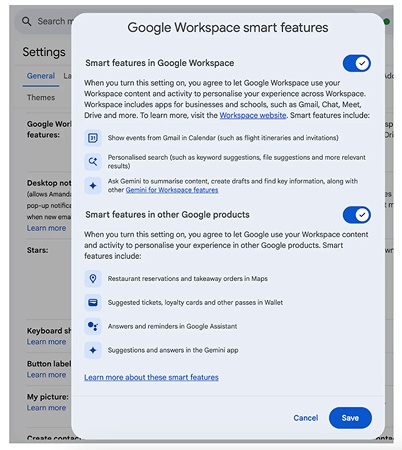
These steps explain how to disable Gemini AI in Gmail on desktop.
Disable Gemini in Gmail (Mobile App)
-
Open Gmail app
-
Tap Menu (☰)
-
Go to Settings
-
Select your email account
-
Turn off Smart Compose and AI features
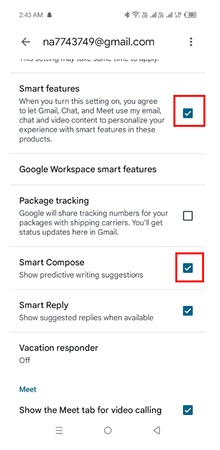
This method helps users who ask how to disable Gemini AI in Gmail on phones.

Tip:
Tip : Google may rename options, but disabling smart features usually stops Gemini.
How to Disable Gemini AI on Android & Samsung
Gemini AI often runs on Android and Samsung devices, appearing in apps, assistants, and shortcuts. Many users want to disable Gemini AI on Android or Samsung phones to avoid distractions and regain control. This section explains simple steps to turn it off safely.
How to Disable Gemini AI on Android
Gemini AI replaces Google Assistant on many Android devices. Users often ask how to disable Gemini AI on Android.
-
Open Settings
-
Go to Apps
-
Find Gemini or Google Assistant
-
Tap Disable or Force Stop
-
Open Default apps
-
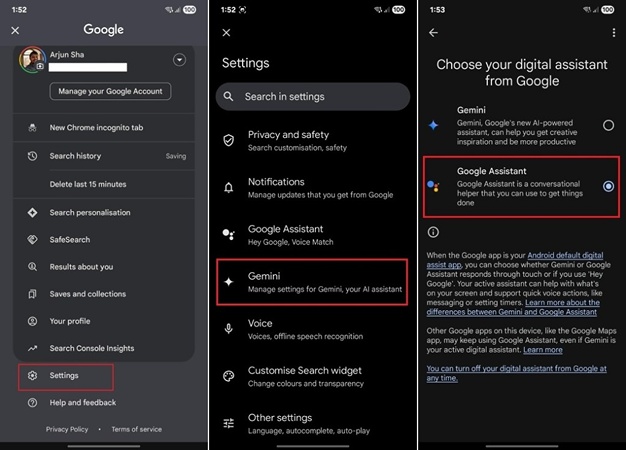
Remove Gemini as default assistant
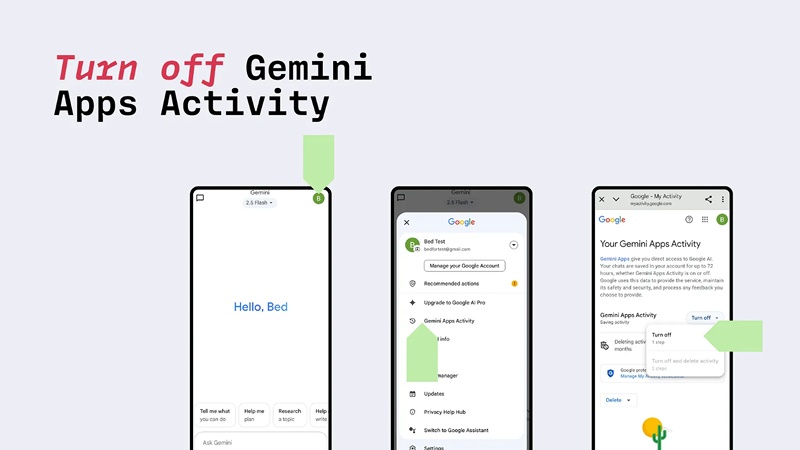
This method explains how to disable Gemini AI on phone devices using Android.
How to Disable Gemini AI on Samsung
Samsung phones add extra steps.
-
Open Settings
-
Go to Advanced features
-
Tap Side key
-
Change press-and-hold action
-
Remove Gemini or Assistant
These steps help users searching how to disable Gemini AI on Samsung clearly.
How to Disable Gemini AI on iPhone
Gemini AI does not integrate as deeply into iOS as it does on Android, but it still appears in Google apps like Gmail, Google Search, and Assistant. Many iPhone users want to disable Gemini AI on iPhone to reduce distractions and regain control over AI features.
Steps to Disable Gemini AI on iPhone
-
Open Google app
-
Tap your profile icon
-
Go to Settings
-
Open Assistant settings
-
Turn off Gemini features

You can also remove the Google app if needed.
These steps answer how to disable Gemini AI on iPhone and how to disable Gemini AI on phone for iOS users.
How to Disable Gemini AI on PC & Chrome
Gemini AI often appears on PCs through browsers and Google services, offering suggestions, summaries, and assistant features. While helpful for some, many users want to disable Gemini AI on PC or stop it from showing in Chrome. This section explains simple, step-by-step methods to turn off Gemini AI on Windows, Mac, and Chrome without affecting your regular browsing or work.
How to Disable Gemini AI on PC (Windows & Mac)
Gemini AI works through browsers and Google services.
-
Open Google Account
-
Go to Data & Privacy
-
Turn off AI Innovations
-
Disable smart suggestions
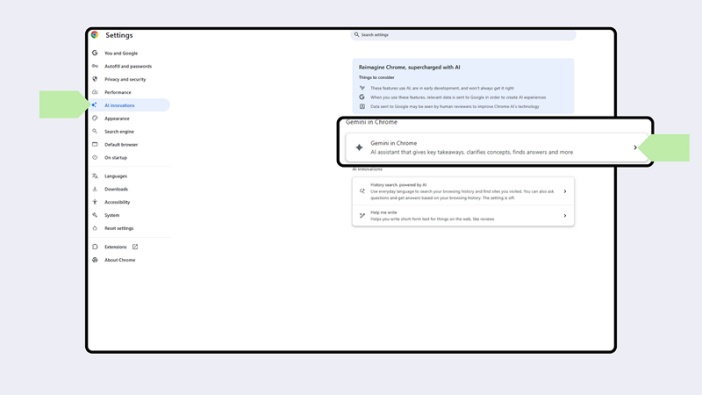
These steps explain how to disable Gemini AI on PC without system changes.
How to Disable Gemini AI in Google & AI Overview
Google now includes AI Overviews in search results, showing summaries, suggestions, and quick answers generated by Gemini AI. Many users ask can you disable AI overview on Google to reduce distractions or maintain privacy. This section explains how to limit or turn off these AI features effectively.
Steps to Reduce Gemini in Google Search
-
Open Google Search
-
Go to Search settings
-
Turn off AI summaries (if available)
-
Use browser extensions to hide AI blocks

While Google does not allow full removal, these steps explain how to disable Gemini AI on Google and how to disable Gemini AI in Google Search as much as possible.
Transform Gemini AI Text into Human-Like Content with Tenorshare AI Bypass
Even after learning how to disable Gemini AI, some AI-written text still appears in emails, articles, assignments, or blogs. Many platforms now use AI detectors that can flag this content quickly. This creates problems for writers, students, teachers, and professionals who rely on AI help but want natural results.
Tenorshare AI Bypass solves this issue in a simple way. It rewrites AI-generated text into clear, human-like writing that feels natural and easy to read. The tool helps users keep their meaning while avoiding AI detection, saving time and effort during content creation.
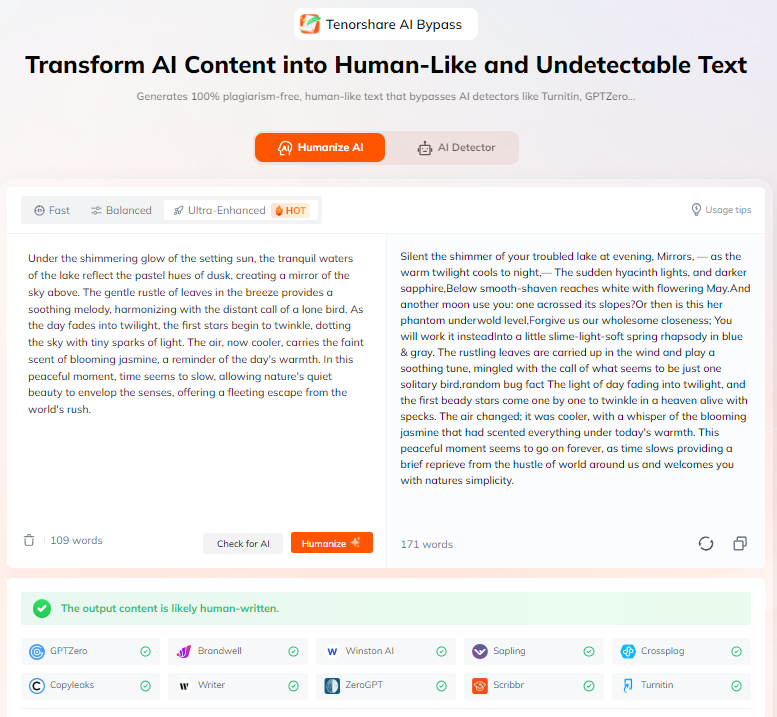
Key Features of Tenorshare AI Bypass
-
Converts AI-written text into natural human-style content that reads smoothly and fits blogs, emails, papers, and professional writing without sounding robotic.
-
Checks your content against popular AI detectors before publishing, helping you confirm that the text appears human-written and safe to use.
-
Works well for school assignments, teaching materials, blog posts, business content, and general writing tasks across different platforms.
-
Lets you copy, paste, and rewrite AI text in seconds, making it ideal for users who want quick results without editing skills.
-
Uses large human-written datasets and supports 50+ languages, ensuring natural sentence flow and reliable results for global users.
Conclusion
Gemini AI now touches almost every Google service. While it helps some users, many want control over privacy, focus, and content style. Learning how to disable Gemini AI gives you that control. You can turn off Gemini in Gmail, reduce it on phones, remove it from Chrome, and limit AI search results.
When Gemini content still appears, tools like Tenorshare AI Bypass offer a simple way to convert AI text into human-like writing. This approach keeps your work natural, clear, and safe across platforms in 2026.
FAQs
Can I permanently disable Gemini AI on Gmail?
You cannot remove it fully, but you can turn off Gemini in Gmail by disabling smart features.
Will disabling Gemini AI affect Google Search?
Yes, results may change slightly, but normal search still works. Many users ask can you disable AI overview on Google, and partial control is possible.
Can I turn off Gemini AI on all my devices at once?
No single switch exists. You must apply settings per device. This is why guides on how to disable Gemini AI on phone, PC, and Gmail matter.
What if I cannot disable Gemini AI on Android or Samsung?
Some system versions block full removal. In that case, disabling default assistant and shortcuts helps.
Is there a safe tool to manage Gemini AI restrictions?
Yes. Tenorshare AI Bypass helps when Gemini text appears and you need natural content.

Tenorshare AI Bypass
- Create 100% undetectable human-like content
- Bypass all AI detector tools like GPTZero, ZeroGPT, Copyleaks, etc.
- Original content, free of plagiarism and grammatical errors
- One-click AI bypass with a clean and easy-to-use interface

You Might Also Like
- Tired of Seeing “Gemini Something Went Wrong”? Here’s Help
- The Rise of General AI Agents: How Manus AI Changing the Game
- Why Manus Is So Powerful - The Next Game-Changer in AI Automation
- Manus AI Agent: What It Is and How to Get a Manus AI Invitation Code
- How to Use Alibaba's Qwen 2.5 Max AI Video Generator for Free: We Tested It!
- How to Use Grok Image Generator: The Ultimate Guide for Creating Stunning AI Images

Tenorshare AI Bypass: 100% Bypass AI Detection
Turn AI text into undetectable, human-like content.AI Humanizer, 100% Undetectable
Humanize AI text instantly.
Tenorshare AI Bypass: 100% Bypass AI Detection